
A crawl error happens when a search engine bot tries to visit a page on your website but fails. This small problem can quietly prevent your pages from appearing on Google. Many site owners do not even know these errors exist until their traffic starts dropping for no clear reason. That’s why using a free SEO audit tool is important for identifying common crawling issues.
What Exactly Is a Crawl Error?
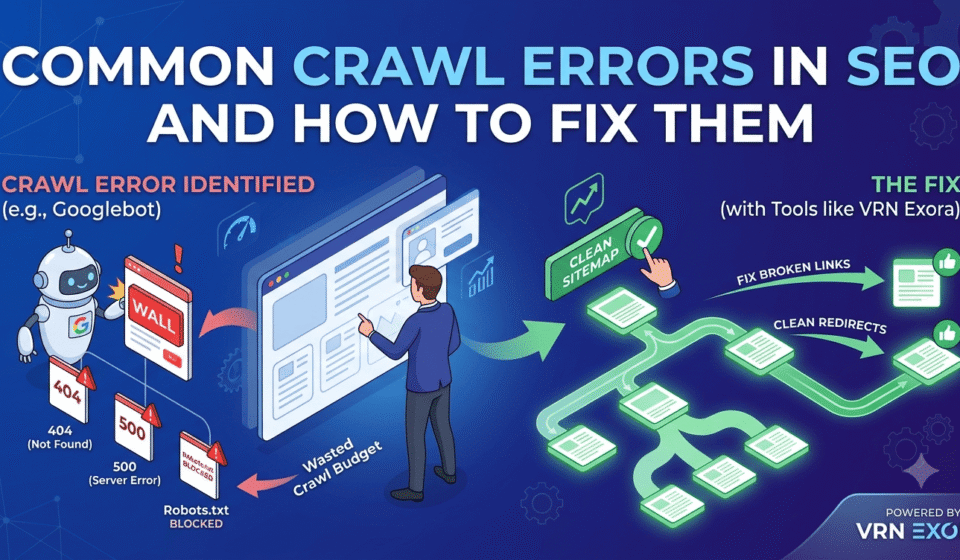
Search engines use bots, often called crawlers or spiders, to visit every page on the internet. Google’s bot is called Googlebot. It moves from link to link, reading each page and deciding whether that page should be added to Google’s index. A crawl error happens when Googlebot tries to reach a page but hits a wall.
According to research from Semrush, broken internal links and crawl errors show up on more than 42% of audited websites, making this one of the most common technical SEO problems around. If your goal is learning how to fix SEO crawl error issues, start by understanding that not every error is the same. Some affect a single page. Others can take your entire website out of search results overnight.
Crawl errors generally fall into two buckets:
- Site errors — affect your whole website at once, such as a DNS failure or a server crash
- URL errors — affect only specific pages, such as a broken link or a missing image
Always fix site-wide errors first. A single broken page is a small problem. A broken server affects every page at once.
Why Crawl Errors Hurt Your Rankings
When Googlebot cannot reach a page, that page cannot be indexed. If a page is not indexed, it cannot appear in search results, no matter how good the content is. Repeated crawl errors can also affect how efficiently Google crawls your website, which may delay the discovery of new or updated content.
Leave the technical work to our experts. Use our SEO audit checklist to audit your business website, identify technical issues, and fix problems that could be affecting your website’s crawling, indexing, and search performance.
Here is what unresolved crawl errors typically cost a website over time:
- Lower rankings, since unreachable pages are dropped from search results entirely
- Wasted crawl budget, meaning Google spends its limited visits chasing broken paths instead of fresh content
- Lost link equity, since backlinks pointing to broken pages no longer pass any ranking value
- A weaker trust signal, since a site full of dead ends looks unreliable to both search engines and visitors
This is exactly why learning how to fix SEO crawl error problems early matters so much, rather than waiting until rankings have already dropped.
Common Types of Crawl Errors and How to Fix Them
Below is a walkthrough of the most frequent crawl errors, what causes each one, and the exact fix for each.
- 404 Not Found Errors
A 404 error means the page simply does not exist anymore. Search engines call out to that address and get nothing back.
What usually causes it
- A page was deleted without setting up a redirect
- A URL slug was changed during a redesign, and the old link was never updated
- A typo exists in an internal link or in the sitemap
- An outside website links to a page that never existed or has since been removed
How to fix it
- Set up a 301 redirect from the broken address to the closest matching live page
- Never leave a valuable page (one with traffic, backlinks, or rankings) as a dead 404
- If the page truly has no replacement, let it return a clean 404 and remove it from your sitemap, menus, and internal links
- Soft 404 Errors
A soft 404 is trickier to catch than a regular one. The page technically loads and returns a success signal, but the content itself is empty, broken, or unhelpful, almost like an error page pretending to be real. Google gets confused because the server says “everything is fine” while the actual page says “there is nothing useful here.”
Where this usually shows up
- Out-of-stock product pages with no substitute content
- Empty internal search result pages
- Thin pages left behind after a content cleanup
How to fix it
- If the page should still exist, add real, useful content so it earns its place in the index
- If the page genuinely has nothing left to offer, change its server response to a proper 404 or 410 status code
- Check the Search Console “Soft 404” report every few months, since these errors rarely announce themselves
- Server Errors (5xx)
A server error means your website’s server failed to respond properly when Googlebot came knocking. These errors are serious because they can affect your whole website at once, not just one page.
|
Code |
What It Means |
|
500 |
General internal server problem |
|
502 |
Server acted as a gateway and got a bad response from another server |
|
503 |
Service is temporarily unavailable, often during maintenance or heavy traffic |
|
504 |
Server took too long to respond and timed out |
How to fix it
- Check your server logs to see exactly when and why failures happened
- Ask your hosting provider whether the plan can handle your current traffic
- Deactivate a recently added plugin or theme if the errors started right after
- Add a content delivery network (CDN) to spread server load across multiple locations
- DNS Errors
A DNS error is one of the most serious crawl errors, since it can make your entire website invisible to search engines. DNS stands for Domain Name System. Think of it as the internet’s phonebook: it translates your website’s name into the numerical address computers use to find your server. When this breaks, Googlebot cannot even find your website to begin crawling.
Common causes
- A misconfigured domain setting
- An expired domain registration
- Downtime at your DNS provider’s end
How to fix it
- Confirm your domain has not expired
- Contact your hosting provider or domain registrar, since they manage DNS settings
- Use a free DNS troubleshooting tool to pinpoint the exact misconfiguration
- Blocked by Robots.txt
Every website has a small file called robots.txt that tells search engines which parts of the site they may crawl and which parts to avoid. Sometimes this file accidentally blocks pages that should be visible in search results, hiding your whole website from Google without anyone noticing.
What usually causes it
- A developer forgets to remove a blanket “disallow all” rule after a redesign
- A plugin changes robots.txt settings without warning
How to fix it
- Open your robots.txt file, usually found at yourwebsite.com/robots.txt
- Look for any rule blocking folders or pages you actually want indexed
- Remove or adjust that line, then confirm the fix using the URL Inspection tool in Google Search Console
- Redirect Chains and Redirect Loops
A redirect chain happens when one address redirects to another, which redirects to yet another, before finally landing on the real page. Each extra hop slows the page down and drains crawl budget, the limited number of pages Google is willing to check during a single visit.
A redirect loop is worse. Page A redirects to page B, and page B redirects right back to page A, creating an endless circle. Visitors see a browser error, and the page fails to load completely. Most sources agree that Google will follow only around five redirect hops before giving up on a chain, so anything longer risks being abandoned entirely.
How to fix a redirect chain
- Update every old redirect so it points straight to the final destination, skipping the middle steps
- Audit redirects annually, and always right after a domain change or redesign
How to fix a redirect loop
- Trace the full path of the redirect rule from start to finish
- Remove whichever step is sending traffic back to where it started
- Broken Internal and External Links
A broken link, sometimes called a dead link, points to a page that no longer exists. Internal broken links point within your own website. External broken links point to other websites that have removed or moved their content. Either way, both users and search engines hit a dead end.
Why this matters
- Broken links waste crawl budget the same way redirect chains do
- Visitors often leave a site the moment a click leads nowhere
- Search engines may lower trust in a site with too many dead links
How to fix it
- Run a full crawl of your website using a dedicated audit tool
- Update any link whose destination page was moved rather than deleted
- Remove links that point to pages gone for good
- Recheck every few months, since new broken links appear naturally as content changes
How to Find Crawl Errors on Your Website
Before you can fix anything, you need to know where the problems are hiding. A few reliable ways to track them down:
- Google Search Console — the most direct source, since it shows crawl data straight from Google’s own activity. The Pages or Coverage report groups errors by type, such as “Not Found,” “Server Error,” or “Blocked by robots.txt”
- Site audit tools — a tool like VRN Exora, a free SEO audit tool, can run a basic crawl of your website and flag common issues such as broken links, missing pages, and pages blocked from search engines, giving you a simple starting checklist
- Server logs — these show every single request Googlebot makes, including the exact response code it received and how long the request took, which often reveals patterns that Search Console alone does not show
A Simple Routine to Prevent Crawl Errors
Fixing existing errors is only half the job. Preventing new ones from piling up matters just as much.
- Check Google Search Console at least once a month, and more often right after a redesign or big content cleanup
- Keep your XML sitemap updated so it only lists live, working pages
- Set up a redirect the same day you delete or rename a page, rather than leaving it for later
- Review your robots.txt file every time your website goes through a major update
- Recrawl your site after any large change to confirm nothing new broke
Learning how to fix SEO crawl error issues as part of a regular routine, rather than as a one-time emergency fix, keeps your website healthier in the long run and helps you avoid sudden traffic drops.
Conclusion
Crawl errors are small technical problems that can cause big damage if left alone. A single missing redirect or one blocked page might not seem serious, but over months and years, these small issues add up and quietly push your website further down the search results. The good news is that almost every crawl error on this list has a clear, simple fix once you know what you are looking for.
Start with the basics: check Google Search Console regularly, fix broken links as soon as you find them, and keep your redirects clean and short. Free tools such as VRN Exora can also give you a quick, no-cost first look at your website’s health, helping you catch obvious problems before they turn into bigger ranking issues. Whether you handle fixes yourself or bring in a developer, the goal stays the same: make sure search engines, and your visitors, can always reach the pages you have worked so hard to build.
Frequently Asked Questions
- What is the fastest way to find crawl errors on my website?
Google Search Console is the fastest starting point, since it shows crawl data straight from Google. Check the Pages or Coverage report for errors like 404s, server errors, and blocked pages, then work through them by priority.
- Do crawl errors always hurt my SEO rankings?
Not always immediately, but unresolved crawl errors reduce how often search engines visit and index your site. Over time, this can lower your visibility in search results, so it is best to fix errors as soon as you notice them.
- What is the difference between a 404 error and a soft 404 error?
A regular 404 clearly tells search engines a page is missing. A soft 404 wrongly returns a success signal while showing empty or broken content, which confuses search engines about whether the page is real or not.
- How often should I check my website for crawl errors?
Checking once a month is a good routine for most websites. However, check immediately after any redesign, domain change, or large content cleanup, since these events often create new crawl errors without warning.
- Can a free tool really help fix crawl errors, or do I need a paid one?
Free tools like Google Search Console can catch most common crawl errors, including broken links and blocked pages. Paid tools add deeper data and automation, but free options are often enough for smaller websites.